 SmartScroll
The short answer: iPhone gives you two built-in ways to block apps (Screen Time app limits and Downtime), and both share the same flaw: an "Ignore Limit" button that turns every block into a suggestion. If the app you're blocking is a game or a shopping app, built-in tools are usually enough. If it's an endless feed like TikTok, Reels, Shorts or X, you need a third-party approach that handles the craving moment instead of just gating the app. Here are all three methods.
Method 1: Screen Time app limits (built in)
The standard route for putting a daily cap on a specific app:
- Open Settings → Screen Time → App Limits → Add Limit.
- Pick an app or a whole category (Social, Games, Entertainment).
- Set the daily time and tap Add.
Where it works: apps you overuse mildly and don't crave. Where it breaks: when the limit hits, iOS shows "Remind Me in 15 Minutes" and "Ignore Limit for Today." Mid-craving, you will tap one of them. Adding a Screen Time passcode helps until you memorize it, which takes about a day. The deeper mechanics of why this fails are in why you ignore Screen Time limits.
Method 2: Downtime and App Limits by schedule (built in)
Downtime blocks everything except apps you whitelist during set hours:
- Open Settings → Screen Time → Downtime and set a schedule, for example 10 p.m. to 7 a.m.
- Under Always Allowed, whitelist Phone, Messages, Maps and whatever you genuinely need.
Where it works: protecting sleep hours with a blunt instrument. Where it breaks: same Ignore button, plus it's all-or-nothing: everything not whitelisted gets gated, so it punishes podcasts and reading along with the feeds.
Method 3: A blocker built for feeds (SmartScroll)
Feed apps fail the built-in tools because the problem isn't access, it's the loop. SmartScroll approaches the same block differently:
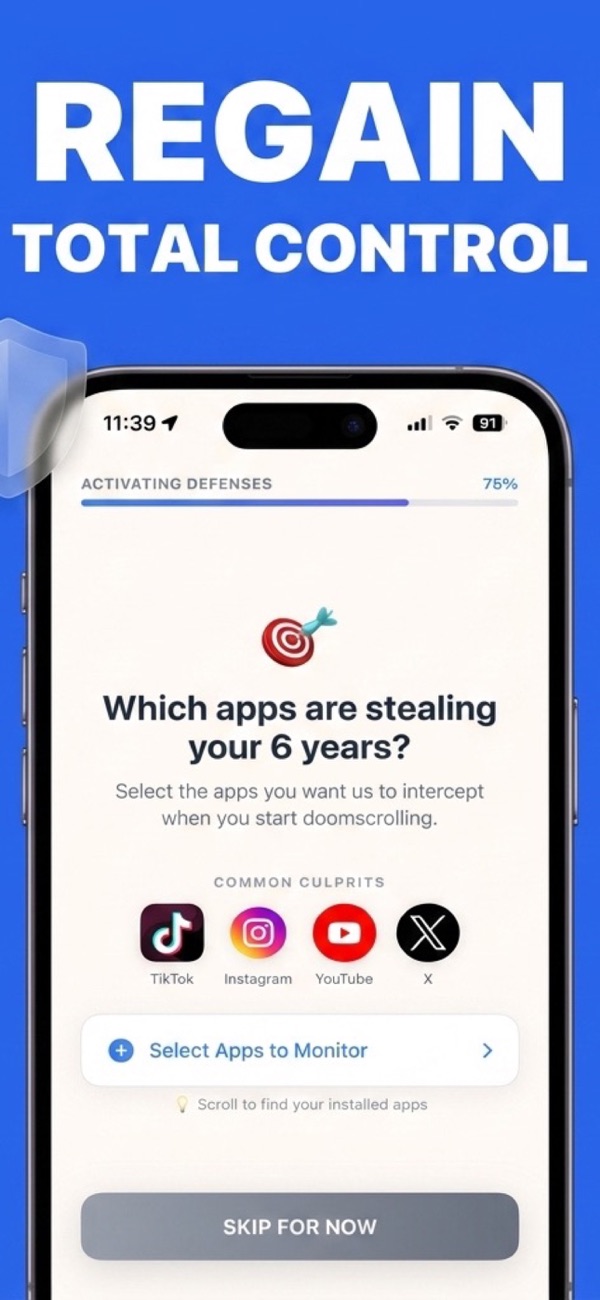
- Download SmartScroll from the App Store and pick your monitored apps: TikTok, Instagram, YouTube, X, or anything with an endless feed.
- Set daily limits and schedules. Same numbers you'd put in Screen Time, but enforced differently.
- When the limit hits, the loop gets interrupted, not just gated. Instead of a dismissible banner, SmartScroll breaks the scrolling momentum and offers bite-sized knowledge cards: the craving gets an outlet, which is why the block holds where the Ignore button fails.
Which method for which app
- Games, shopping, news apps: Screen Time limits are usually enough. The craving is weaker and the Ignore button gets less of a workout.
- Everything at night: Downtime, with a tight whitelist. Pair it with charging the phone across the room; see the night guide.
- TikTok, Reels, Shorts, X: SmartScroll. Endless feeds are engineered around the exact moment built-in blocks collapse. Platform-specific setups: TikTok, Instagram Reels, YouTube Shorts.
Combine them: the methods don't conflict. A common stack is Downtime for the sleep window, Screen Time limits on games, and SmartScroll on the feeds. Each tool covers the failure mode of the others.
Frequently asked
Can I block an app on iPhone completely, with no override?
Almost. Screen Time with a passcode held by someone else (a partner, a friend) is the closest iOS gets to unbypassable. For self-managed blocking, the honest answer is that every method leaves an exit, which is why the redirect approach beats the wall approach for strong habits: it works with the craving instead of daring it.
Can I block Safari access to the same sites?
Yes: Settings → Screen Time → Content & Privacy Restrictions → Content Restrictions → Web Content lets you block specific sites, which closes the tiktok.com-in-browser loophole.
Block the feeds the way that holds
Download SmartScroll and set your first limit in two minutes.