 SmartScroll
The short answer: set a daily TikTok limit in an app that interrupts you when it's reached, instead of one you can wave away. iPhone's built-in Screen Time can technically do this, but its "Remind Me in 15 Minutes" and "Ignore Limit" buttons turn every block into a suggestion. SmartScroll blocks TikTok automatically after your limit and meets the craving with an interruption flow and knowledge cards, so the block actually holds.
Why deleting TikTok usually backfires
Cold turkey sounds decisive, but TikTok is also where your friends send memes and DMs, and where you follow creators you genuinely like. Most people who delete the app reinstall it within weeks, and the binge that follows erases any gains. The sustainable move is keeping TikTok installed while making the endless feed expensive: intentional use stays easy, autopilot use gets interrupted.
Option 1: Apple Screen Time (and its 15-minute problem)
To try the built-in route: Settings → Screen Time → App Limits → Add Limit → choose TikTok → set a time. It works until the first real craving, because when the limit hits, iOS politely offers "Remind Me in 15 Minutes" and "Ignore Limit for Today." Mid-craving, you will tap it. That's not a discipline failure; it's a design flaw: the enforcement moment is exactly when your willpower is weakest, and iOS hands you an escape hatch.
Option 2: SmartScroll, block the loop, keep the app
SmartScroll was built around that exact weak moment. Here's the setup, which takes about two minutes:
- Download SmartScroll from the App Store and run the quick onboarding.
- Select TikTok as a monitored app. It's first in the "common culprits" list: alongside Instagram, YouTube and X if you want them too.
- Set your daily limit and schedule. Be honest but ambitious: if TikTok currently gets 2+ hours, start at 45 minutes. Add a schedule to keep evenings or mornings feed-free.
- Hit the limit and meet the interruption. Instead of a dismissible banner, SmartScroll breaks the scrolling momentum and offers a better deal: three quick knowledge cards to restore your focus, right when your brain wants one more video.
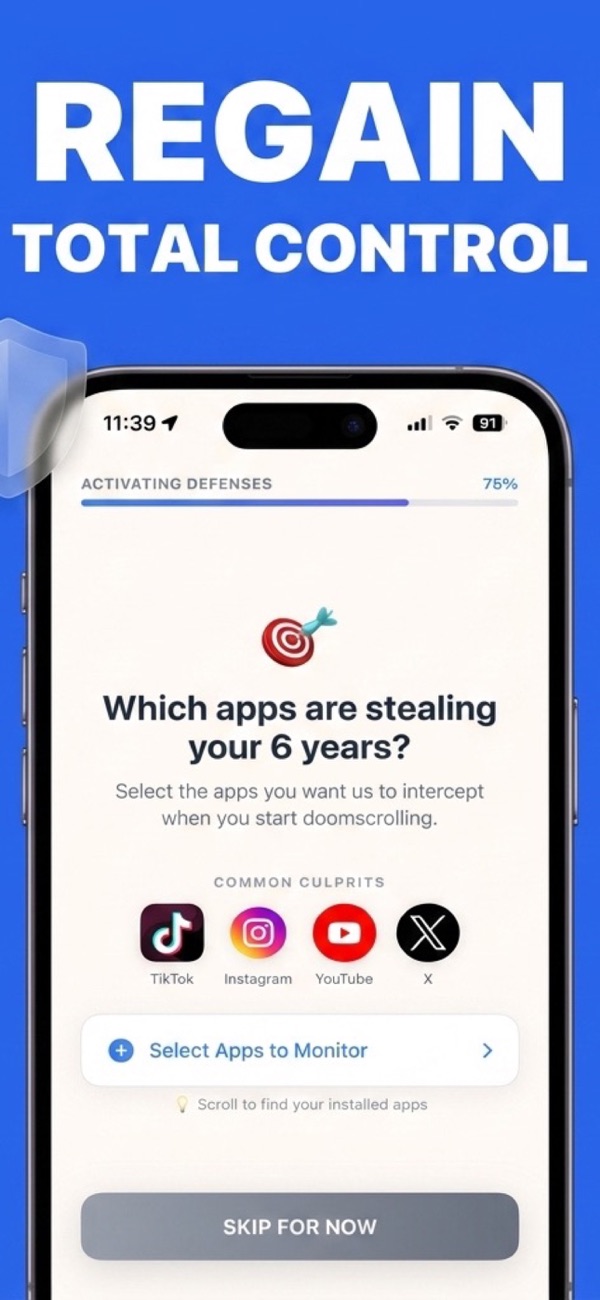
What happens when you hit your TikTok limit
This is where SmartScroll differs from every wall-style blocker. The moment your limit is reached, the app interrupts the loop: "The clock is ticking. You can't buy this minute back." You get a real choice: scroll three knowledge cards, or consciously take one more minute. Either way, the trance is broken. The autopilot session that would have run 40 minutes ends in seconds, and the junk-feed reflex gets redirected into something you'll actually remember.
Pro tip: check the Life Grid after your first week. Seeing your reclaimed TikTok hours as green dots of life, instead of red ones lost forever, is the motivation that keeps the limit in place. See our screen-time reduction plan for the full method.
Frequently asked
Can I still use TikTok for DMs after the block?
Set your daily limit high enough to cover intentional use: the point is ending the unplanned autopilot sessions, not banning the app. Most people find 30–45 minutes covers everything they actually meant to do on TikTok.
Does this work for TikTok in Safari too?
The reflex nearly always lives in the app, and that's what SmartScroll monitors. If you find yourself migrating to tiktok.com in the browser, treat it as a sign to tighten your schedule, and read why blockers get bypassed.
Block TikTok's loop: keep TikTok
Your For You page will survive without you.