 SmartScroll
The short answer: don't try to reduce all screen time, reduce unplanned screen time. Maps, messages, banking and the podcast you chose are fine. The hours that hurt come from autopilot sessions: you open TikTok, Reels or Shorts without deciding to, and surface 40 minutes later. Target those sessions with limits, interruption and a visible cost, and your total drops by hours without your life getting harder.
Step 1: Find out where the time actually goes
Open Settings → Screen Time and look at your weekly report. Ignore the total; look at the top three apps and the Pickups count. If you pick up your phone 80 times a day and your top apps are social feeds, your problem isn't "screen time": it's the scrolling loop. That distinction decides the whole strategy: you don't need a digital detox, you need to break the doomscroll loop.
Step 2: Separate chosen time from stolen time
Go app by app and ask: "Did I decide to spend this?" FaceTime with family: chosen. Two hours of Reels that felt like twenty minutes: stolen. Most people find 40–60% of their screen time is stolen, and it's concentrated in two or three feed apps. Those are your targets. Everything else gets left alone, which is why this plan doesn't collapse in a week like blanket detoxes do.
Step 3: Put real limits on the stolen-time apps
In SmartScroll, add your culprit apps, TikTok, Instagram, YouTube, X, or anything with an endless feed, and set daily limits sized to your chosen use only. Then add schedules for your personal danger zones: the first 30 minutes after waking and the hour before bed are the most common. Apple's Screen Time can set the same numbers, but its "Ignore Limit" button makes every block optional; if you've already out-clicked it, read why app blockers don't work.
Step 4: Let the interruption do the willpower for you
When a limit is reached, SmartScroll doesn't show a dismissible banner. It stops the loop ("The clock is ticking. You can't buy this minute back.") and offers quick knowledge cards instead. The scrolling urge gets an outlet (you still scroll, through bite-sized facts), which is why the redirect holds where a plain wall gets bypassed.
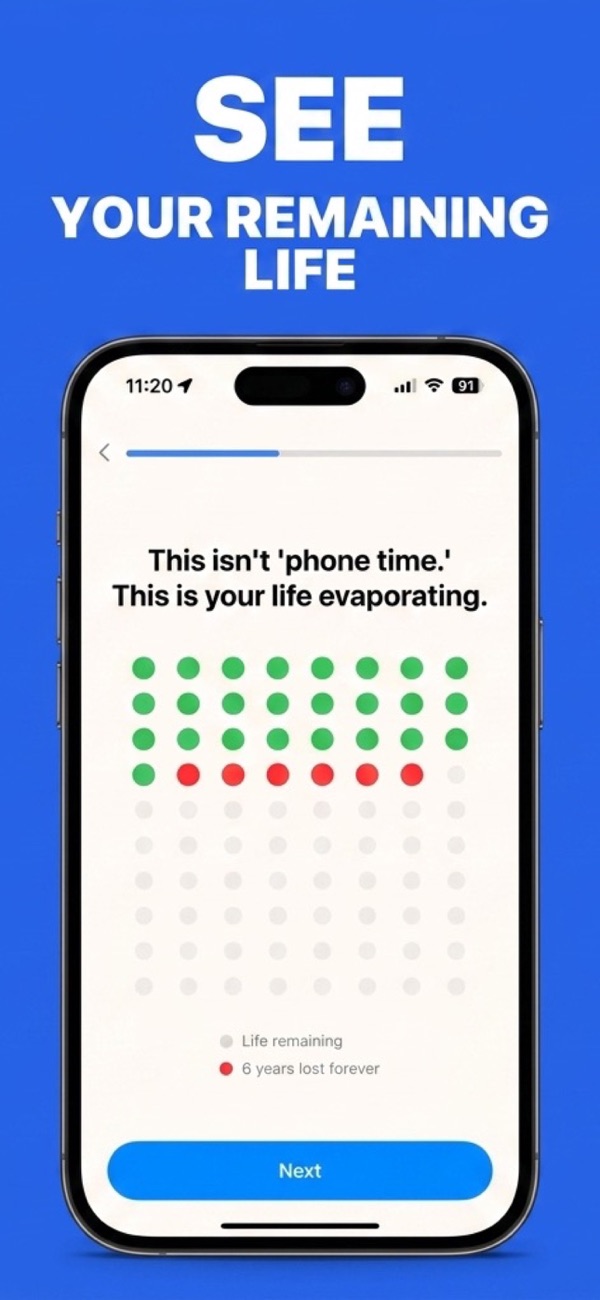
Step 5: Make the cost visible with the Life Grid
Numbers don't change behavior; meaning does. "3 hours daily average" bounces off. SmartScroll's Life Grid converts your scrolling into the only currency that registers: your remaining life. It shows your years as a grid of dots, and marks the years the current habit will consume in red. Seeing "6 years lost forever" next to your actual remaining dots is the moment most users stop negotiating with their limits.
Realistic targets: if you're at 6 hours a day, don't aim for 2, you'll fail and quit the whole plan. Cut the stolen time first: 6 hours becomes 4 in week one just by ending autopilot sessions. Tighten limits gradually from there.
What a successful week looks like
- Days 1–2: you hit the interruption constantly. Good: each one is a session that used to run 30+ minutes.
- Days 3–5: pickups drop. You stop opening feed apps "to check one thing."
- Days 6–7: your Screen Time report shows the drop, and the Life Grid shows the same hours as reclaimed life. That feedback loop, not discipline, is what keeps the new baseline.
Cut the hours you never chose
Download SmartScroll: limits, interruption and the Life Grid in one setup.